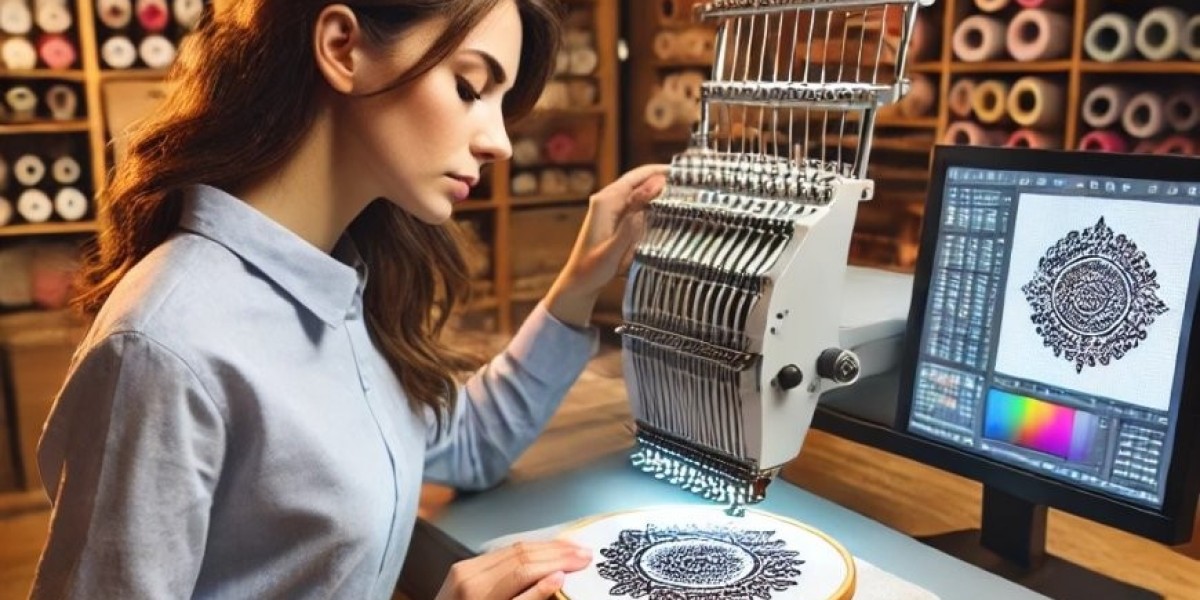

Introduction
You have an Elna machine sitting on your table. You know it can produce stunning embroidery. But that crisp logo on your computer screen means nothing to your machine right now. Elna machines do not read JPGs or PNGs. They read stitch files. Learning to Convert Logo to Embroidery for Elna Embroidery Machine the right way separates frustrating failed runs from beautiful, professional results.
I have watched too many people struggle with this. They try free online converters. They end up with files that snap threads, pucker fabric, or come out looking nothing like their logo. The truth is, Elna machines are precision tools. They deserve precision digitizing. Let me walk you through exactly how the pros do it, what software actually works, and when you should call in an expert.
What Your Elna Machine Actually Needs
Let us start with the technical side so you understand what you are working with.
Elna embroidery machines support several file formats. The most common ones are .JEF and .EXP, which store detailed stitch instructions including stitch types, density, colors, and sequencing . Some models also work with .SEW and .EMD formats . Think of these files as the blueprint for your design. A JPG shows you what the logo looks like. A JEF file tells your machine exactly where to put every single needle.
Here is something many people do not realize. Elna machines are built for precision, but they can only perform as well as the file you give them . A poorly digitized design leads to skipped stitches, misaligned borders, and inconsistent thread flow, no matter how advanced your machine is.
Why You Cannot Just Click Convert
I need to be straight with you. Those free online converters that promise one-click conversion from JPG to embroidery file rarely deliver professional results.
Here is what happens when you rely on auto-digitizing. The software misses small text details, turning your company name into an unreadable blob. It sets stitch density incorrectly, leading to broken threads or heavy stitching that puckers the fabric . It ignores pull compensation entirely, so circles become ovals and outlines stop lining up. And it has no idea what fabric you are using, so the same settings that work on a cotton tote fail completely on a stretchy polo.
Auto-digitizing tools are fine for personal experiments. For a business logo that represents your brand, they are a gamble you should not take.
The Professional Digitizing Process
Professional digitizers follow a methodical process that ensures flawless results. Let me break down each step so you understand what goes into a quality file.
Step 1: Logo Evaluation
The process begins before any software opens. A professional digitizer studies your logo for complexity, gradients, text size, and small details . They look for elements that might cause trouble, like tiny letters, overlapping colors, or soft shadows that do not translate well to thread.
Step 2: Artwork Cleanup
If your logo is low resolution or blurry, a professional redraws it into a clean vector format . This ensures every line, curve, and edge is crisp before digitizing starts. Skipping this step is like building a house on a crooked foundation.
Step 3: Manual Digitizing
Using advanced software like Wilcom Embroidery Studio, the digitizer maps out each section with proper stitch types . This is not automatic. A human decides where to use satin stitches for borders and text, fill stitches for large areas, and run stitches for fine details.
Step 4: Parameter Settings
This is where the magic happens. The digitizer adjusts critical settings that software alone cannot handle .
Stitch density controls how tightly the thread packs together. Too dense and the fabric puckers or needles break. Too loose and the design looks sparse and see-through.
Underlay is the foundation stitches that go down first . They stabilize the fabric and prevent the top stitches from sinking in. Choosing the wrong underlay type ruins everything.
Pull compensation accounts for how thread physically pulls on fabric during stitching . Without it, your perfectly round logo circle becomes an oval. Professional digitizers adjust this by fractions of a millimeter based on your specific fabric.
Stitch angle changes how the thread pulls. For stretchy fabrics, professionals use a 45 degree angle instead of straight horizontal or vertical to balance the pull.
Step 5: Machine Testing
Before you ever see the final file, a professional stitches a test run on fabric similar to your final material . They check for alignment issues, tension problems, and any gaps between fill areas and borders.
Step 6: Format Conversion
Once the test passes, the file is saved in your Elna-compatible format, typically .JEF or .EXP . Most professionals also provide the editable file format so you can make small changes later without paying to re-digitize.
Step 7: Quality Control
A final review confirms clean trims, correct color stops, and perfect alignment . The file is now ready to run on your Elna machine.
Software Options for DIY Digitizing
If you want to digitize your own logos, you need the right tools. Here is what works with Elna formats.
Wilcom Embroidery Studio is the industry standard. It supports Elna formats including JEF and EXP, and it gives you complete control over every stitch parameter . The learning curve is steep and the price is high, but this is what professional digitizers use.
Hatch Embroidery, made by the same company as Wilcom, is more accessible for home users and small shops. It reads and writes JEF, SEW, EMD, and other Elna-compatible formats . The interface is friendlier while still offering professional-level tools.
SewFlow offers a free online option that converts images to JEF format with no signup required . It works for simple designs and personal projects, but do not expect professional results for complex business logos.
Embrilliance Essentials works on Mac and Windows, but for full digitizing you need the Stitch Artist level, which adds cost. It supports multiple formats including those used by Elna.
The Secret That Saves You Time
Let me tell you what most experienced embroiderers do. They do not digitize everything themselves. They outsource to professional digitizing services.
Here is why this makes sense. Professional digitizers have years of experience. They use software that costs thousands of dollars. They understand how different fabrics behave and adjust settings accordingly. They deliver files that stitch out perfectly on the first run .
A professional digitizing service charges between ten and twenty dollars per logo . That is a bargain. Compare that to the hours you would spend learning software, the cost of thread wasted on failed test stitches, and the frustration of ruining customer garments.
Absolute Digitizing offers Elna-compatible formats including JEF and EXP . Their digitizers follow the professional process I described above, including machine testing before final delivery. They also offer free revisions if something is not right.
When you hire a professional, always ask for the editable file along with your machine format. That way, you own the full design and can make small changes later without paying again.
Common Mistakes to Avoid
Let me save you from the errors I see most often.
Not checking your hoop size before digitizing. A beautiful design that is two inches wider than your hoop is useless. Set your dimensions early.
Using a low resolution logo. If your logo is pixelated on screen, it will stitch out pixelated. Start with a vector file or a high resolution PNG at 300 DPI.
Forgetting to specify your fabric type. A design digitized for woven cotton will fail on a stretchy polo. Tell your digitizer or software exactly what you are stitching onto.
Skipping the test stitch on scrap fabric. This is the number one cause of ruined finished garments. Test with the same stabilizer and thread you plan to use for production.
Not asking for the editable file. Without it, you pay full price every time you need a small adjustment.
How to Test a Digitized File
Before you run your full production, run this simple test.
Hoop a piece of scrap fabric that matches your final material. Use the same stabilizer you plan to use. Thread your machine with the actual thread colors. Load the file onto your USB drive formatted to FAT32. Stitch out the design. Examine the results carefully.
Look for clean edges with no jagged outlines. Check for even fill stitches without gaps or overlaps. Verify that small text is readable. Confirm colors are in the correct order. Listen for smooth machine operation without thread breaks.
If any of these fails, go back to your digitizer or software and request changes. Do not run production until the test passes.
Conclusion
Converting a logo to embroidery for your Elna machine does not have to be complicated. The professional path starts with clean artwork, uses proper software with manual digitizing, and always includes a test stitch before production.
You have three options. Learn professional software like Wilcom or Hatch and invest the time to master manual digitizing. Use auto-digitizing tools for simple personal projects, accepting the quality limits. Or hire a professional service like Absolute Digitizing to deliver ready-to-stitch Elna files for ten to twenty dollars per design.
For most small business owners, outsourcing is the smart move. You get professional results without the months of learning curve. Your Elna machine is a precision instrument. Feed it a precision-digitized file, and it will reward you with flawless, beautiful embroidery every time.