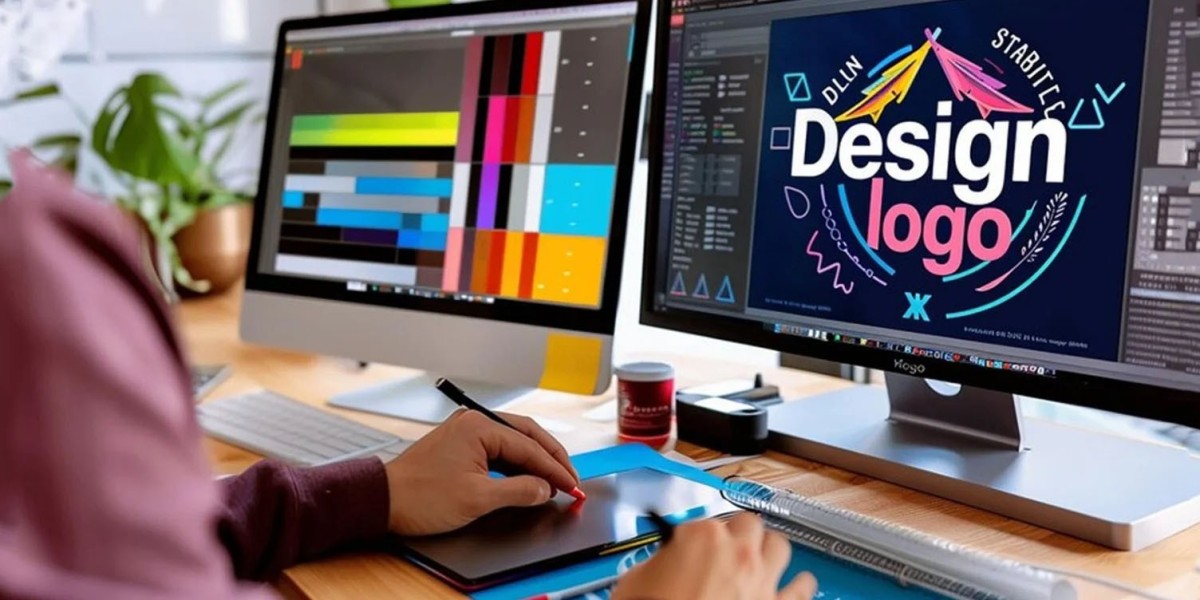

You sit down at your embroidery machine. You load a beautiful new design. You hit start. And then—chaos. Thread snaps. Needles bend. Your machine spits out tangled loops that look nothing like the picture. Sound familiar? I have been there. The problem is rarely your machine. The problem is a language barrier. Your machine speaks in stitches, not in pretty pictures. So let me teach you exactly how to Digitize Designs for Happy Embroidery Machine results every single time. No frustration. No wasted thread. Just smooth, clean embroidery that makes you smile.
I promise to keep this practical. No fluff. No weird tech talk. Just real steps you can use today, whether you are digitizing your first logo or your hundredth monogram.
Why Your Machine Acts Like a Cranky Toddler Sometimes
Embroidery machines are amazing, but they have zero patience. Give them a poorly digitized file, and they throw a tantrum. They skip stitches. They shred fabric. They stop mid-design with an error code that means nothing to you.
Here is the truth. Your machine does not see colors or shapes like you do. It only sees a path of needle penetrations—one punch after another. If that path has sharp angles, sudden jumps, or messy overlaps, your machine gets confused. It tries its best, but garbage in means garbage out.
I learned this the hard way. I once digitized a beautiful cursive name for a client. On my screen, it looked flawless. On her machine? A thread-tangled nightmare. Why? I used the wrong stitch type for the curves. The machine kept trying to make tight turns that were physically impossible for the needle. We both wanted to cry.
But here is the good news. Once you understand a few simple rules, you can avoid all that drama.
The Secret Language of Stitches: Satin vs. Tatami vs. Run
Every embroidery design uses three basic stitch types. Think of them as your vocabulary. If you use the right word in the right place, your machine understands you perfectly.
Run stitches are your basic line. One needle punch, a small jump, another punch. Perfect for outlines, fine details, and text under a quarter inch tall. Run stitches move fast and keep your design light.
Satin stitches are thick and shiny. They zigzag back and forth to create a solid, raised line. Use satin for lettering, borders, and any element that needs to pop. But watch your width. Anything wider than about 10 millimeters becomes unstable. Your machine will struggle.
Tatami stitches fill large areas. They look like rows of tiny bricks stacked together. Use tatami for backgrounds, big shapes, and patches. Tatami covers space efficiently without using too much thread.
Most beginner digitizing fails because they choose the wrong stitch type for the shape. A thick satin on a huge area? Disaster. Run stitches on a bold logo? Looks cheap. Match the stitch to the shape, and your machine will thank you.
Density: The Goldilocks Rule You Cannot Ignore
Density means how close together your stitches sit. Too dense, and your machine pierces the same holes over and over. You get thread breaks, fabric puckers, and needle heat. Too sparse, and you see fabric peeking through your design like a bad haircut.
Here is my rule of thumb. For standard fabric like cotton twill or denim, set your density between 0.35 and 0.45 millimeters. That means each stitch lands about a third of a millimeter from its neighbor. Close enough to cover well. Far enough to avoid jamming.
For delicate fabrics like silk or mesh, loosen up to 0.5 or 0.6 millimeters. For heavy materials like caps or leather, tighten to 0.3 millimeters. But never go below 0.25. That is the danger zone where your machine starts fighting itself.
I test every new density setting by stitching a small sample first. Just a one-inch square. Takes three minutes. Saves me hours of picking out stitches later.
Underlay: The Invisible Hero Your Machine Loves
Most people skip underlay because you cannot see it in the final design. Big mistake. Underlay is like the foundation of a house. You do not see it, but everything stable sits on top of it.
Underlay stitches go down first. They anchor the fabric, prevent shifting, and stop your top stitches from sinking into fluffy materials like fleece or puffy foam. Without underlay, your design looks wobbly and uneven.
I use three types of underlay. Edge run goes right along your shape’s outline. It holds the border in place. Zigzag underlay adds stability for satin columns. Center tatami underlay fills large areas before the top tatami goes on.
For most designs, a simple edge run plus a light zigzag is plenty. Do not overdo it. Too much underlay stiffens your fabric and wastes thread. Just enough to feel a subtle grid when you touch the fabric before stitching.
Pull Compensation: Why Your Circles Look Like Eggs
Here is a weird thing about embroidery. Fabric stretches as you stitch it. The needle pulls the material in all directions. So a perfect circle in your digitizing software often stitches out looking like an egg or a squashed oval.
Pull compensation fixes this. You deliberately make your shape slightly wider or taller than you want it to end up. The fabric pulls it back into the correct proportions during stitching.
I add about 0.2 to 0.3 millimeters of compensation for standard woven fabrics. For stretchy knits, I go up to 0.5 millimeters. For stable fabrics like canvas, I use almost none. You learn this by testing. Stitch a 20mm circle. Measure it. If it came out at 19mm wide, add 1mm of compensation next time.
Most digitizing software has a pull compensation slider. Use it. Your circles will thank you.
Trim Jumps and Tie-Offs for a Clean Back
A design with a messy backside often stitches poorly on the front. Long jump stitches—those threads that travel across empty space—get caught on hoops, snag on fabric, and create birds nests under your needle.
Always trim jumps longer than 7 millimeters. Better software does this automatically. If yours does not, manually add trim commands or design your sequence to minimize jumps.
Tie-offs matter too. Without a tie-off, your thread can unravel from the last stitch. A simple three-stitch tack or a knot command locks everything in place. Add tie-offs at the end of every color block and at the design’s final stitch.
I check every design by running my finger over the back. If I feel loops or loose ends, I go back and add more tie-offs.
Saving Your Design in the Right Format
Your machine cannot read every file type. A .DST file works on most commercial Tajima machines. .PES works for Brother and Babylock home machines. .EXP works for Melco. .CND works for Bernina.
Exporting in the wrong format is like handing a French speaker a Japanese menu. Nothing makes sense. Before you save, check your machine’s manual or look up its required extension. When in doubt, .DST is the safest bet for professional machines. .PES is best for home embroiderers.
Keep your original digitizing file too—usually .EMB or .OFM. That way you can edit later without starting over.
Conclusion: Happy Machine, Happy You
Embroidery does not have to be a battle. Your machine wants to stitch beautifully. It just needs you to speak its language clearly. Choose the right stitch type. Set a sensible density. Never skip underlay. Add pull compensation for shape accuracy. Trim those long jumps. And always export to the correct file format.
The first time you load a well-digitized design and watch your machine glide through it without a single thread break, you will feel like a wizard. No more babysitting the machine. No more ripped fabric. Just clean, professional embroidery that makes you proud.
Start with one small design today. Digitize it carefully. Test it on a scrap of fabric. Adjust what looks wrong. That is how you learn. And before you know it, you and your machine will be best friends.